What to Expect During the Free Trial Period of CKEditor
Quick answers
-
The CKEditor trial is available for free for 14 days.
-
All premium features and add-ons are available in the self-hosting option (npm or ZIP) and via SaaS.
-
The trial can be activated using a license key made available in your dashboard.
-
After the trial, you can continue to use the free plan without the premium features. If you sign up for a subscription, then the subscription will begin after the 14 days are completed.
Modern tech stacks are complex. Large enterprise systems have always been filled with interdependencies, but even smaller applications depend on frameworks and third-party tools. Before committing time, money, and resources to a new component, you’ll want to test how it will fit within your architecture.
Many applications require a WYSIWYG editor so users can create content. Rather than building on your own, you can choose an editor component that’s handled the heavy lifting already.
CKEditor fits this bill, with more than 300 available features and a plug-in architecture for easy development and customization. Instead of spending months building and maintaining an editor internally, teams can evaluate a production-ready editing experience in their own application within minutes. If you want to see what the editing experience looks like from the end user’s perspective, you can explore the interactive CKEditor demos before starting the trial.
However, you’ll still need to figure out if it will work with your project and tech stack. CKEditor offers a 14-day free trial to help you answer that.
This post will cover what to know about the trial period including what you get, how to set up your license keys, and which questions to ask before you upgrade.
What you get in the CKEditor 14-day trial
During the trial, you have access to all standard and premium features in both the SaaS and self-hosted options.
Initial editor setup is easy. You can always set up CKEditor manually, but the fastest way is to use the CKEditor Builder, a visual configuration tool for setting up the rich text editor, to do the initial code creation. Because CKEditor uses a plug-in-based architecture, adding or removing features later is fairly straightforward.
Premium features to validate first
When you first set up your editor, you should try out most of the features and get feedback from a few users. But while all are important to test, there are a few standout premium features you shouldn’t miss:
CKEditor AI
When employees use AI, they often switch tabs between chatbots and editors and copy/pasting between the two. This fragmented workflow slows output and increases errors. CKEditor AI removes the need for this by putting every tool you need into the editor, including an AI Chat for freeform prompts, AI Quick Actions for inline edits and changes, AI Translate for AI-assisted translations, and an AI Review to check everything from grammar to brand guidelines.
Each tool can work directly on documents themselves, skipping the time-consuming, error-prone copying and pasting. These productivity improvements add up over time. For teams producing large volumes of content, keeping AI directly inside the editor can significantly reduce editing time and review cycles.
Out-of-the-box, CKEditor offers access to the most recent models from Anthropic, OpenAI, and Google Gemini, as well as custom LLMs when distributed on-premises.
Learn more about CKEditor AI here.
Collaboration
Most modern work teams are heavily distributed, whether across the hall or across the globe. Facilitating work across a distance helps your teams create, manage, and approve content across the full lifecycle.
CKEditor includes built-in collaboration tools such as comments, track changes, and revision history. Additionally, you can choose whether you want to implement asynchronous or real-time collaboration. By relying on CKEditor, your team won’t have to build in state management, conflict resolution, or permission systems from scratch (which normally takes significant engineering time to build and maintain).
Learn more about Collaboration features.
Converters
Moving content across formats like Microsoft Word, PDF, HTML, Markdown, or plain text leads to formatting inconsistencies that can require time-consuming manual cleanup.
CKEditor’s Import from Word, Export to Word, and Export to PDF features let you transfer documents across formats while preserving document structure, styling, and even embedded elements. This can eliminate the hours teams often spend fixing formatting issues after copying content between systems.
Learn more about Content Converters.
CKBox
Image and media file management can quickly become disorganized across various teams and applications.
CKBox provides a centralized file management system integrated directly with the editor. Users can upload, browse, search, and reuse images and other assets without leaving the editing interface. It also supports image optimization and responsive image handling, helping you maintain performance while preserving quality. CKBox is ideal for product teams requiring a comprehensive asset management system embedded in CKEditor. It supports scalable workflows, detailed permissions, and high-volume performance.
How to start the trial and activate premium features
Getting started is fast and commitment-free. You can set up your editor layout, choose the features, and select your deployment model in minutes, all without entering any payment information.
Setting up your editor
If you want the easiest way to get started, try using the Builder. Here are the steps to take:
1. Select your editor type. You start by selecting the editor layout and functionality you want. It offers multiple types, from a WYSIWYG HTML editor to a Google Docs-like editor to in-line bubble interfaces. In the example below, you’ll see the full AI-powered collaborative editor selected.
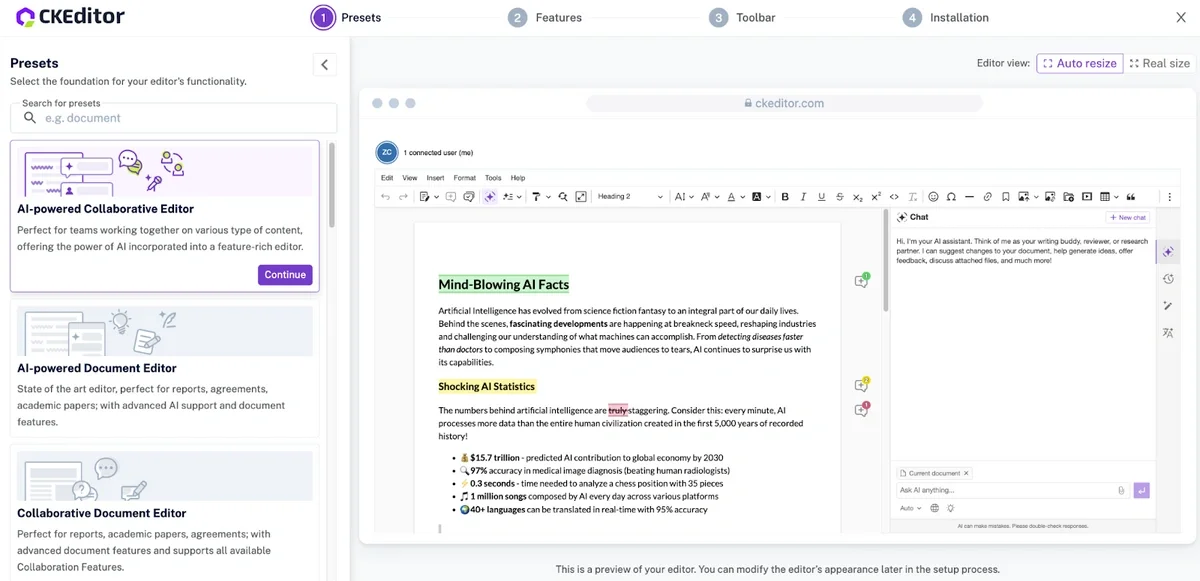
Note: The editor selection creates an interactive demo in the preview window so you can quickly test functionality before you even generate code. In the above example, you can select the AI Chat on the right, type in a prompt, and see how it works on this example document.
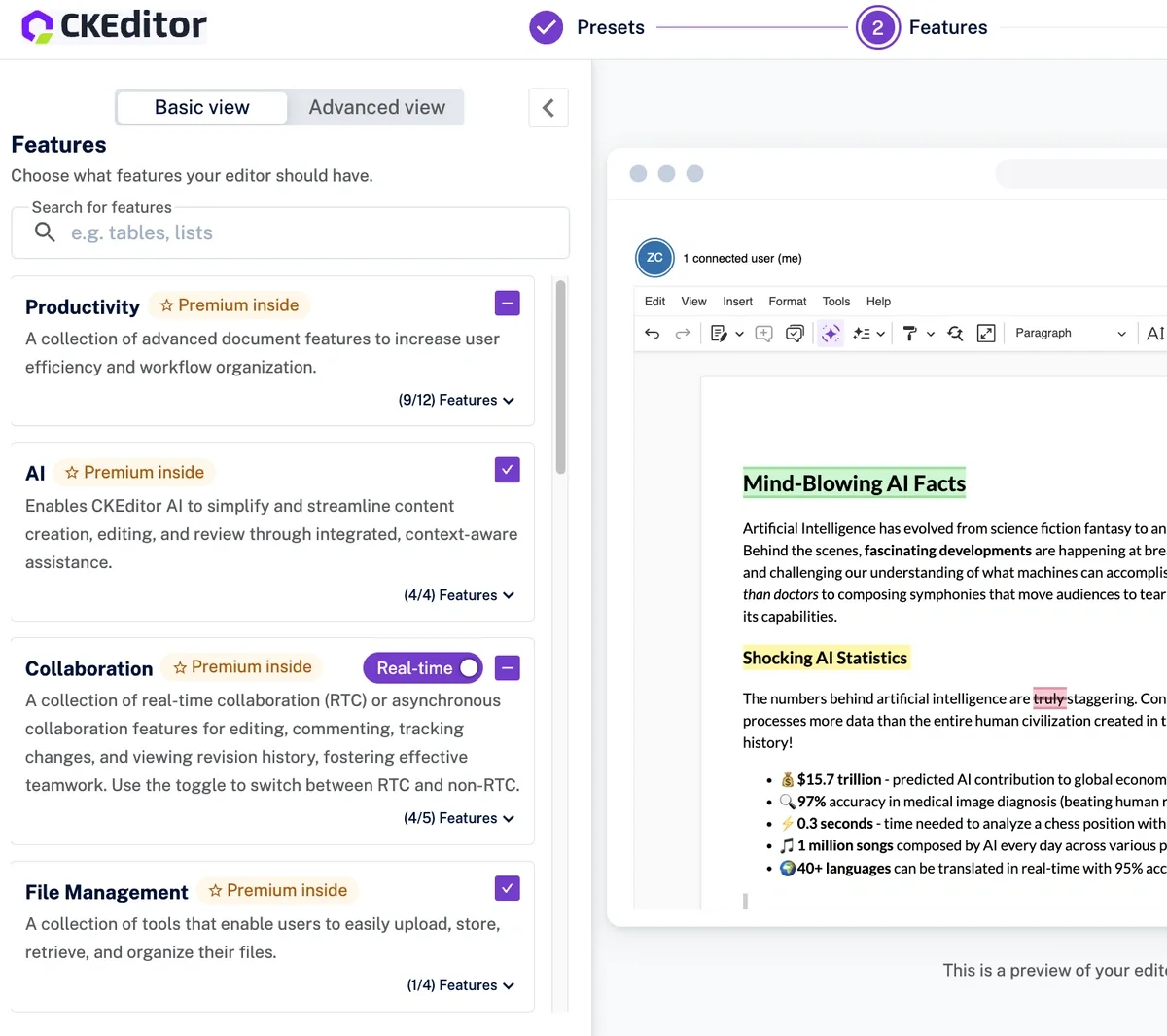
2. Select your features. Next, choose which features to add to the editor. The basic view (shown below) lets you toggle premium features on and off, while the advanced view gives you granular control over the full feature list.
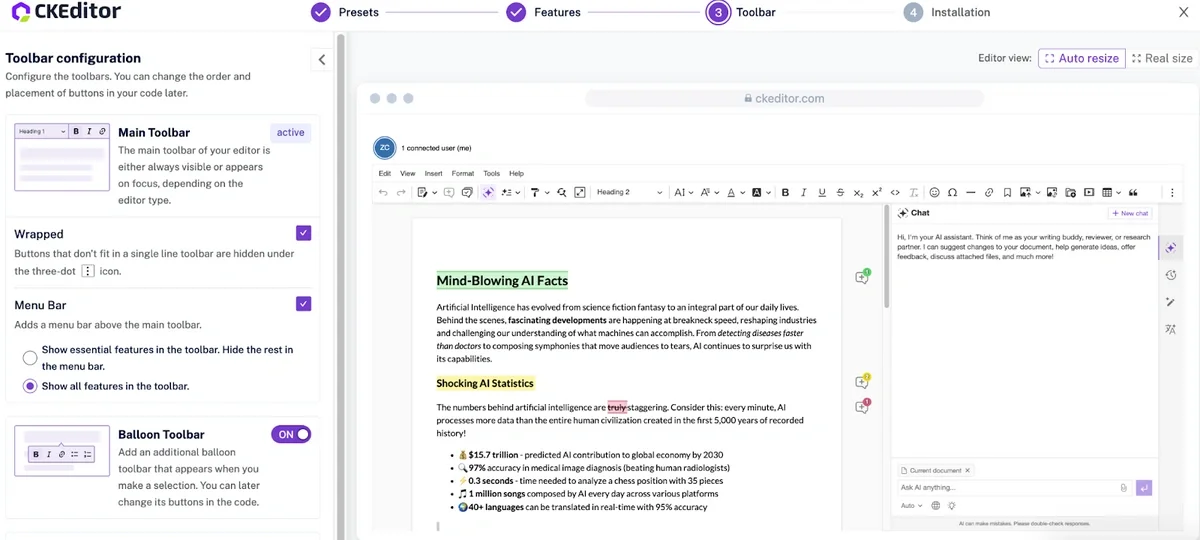
3. Choose your toolbar setup. Next, you can select one of the available toolbar layouts and use the preview to see how the editor interface changes based on your selection.
4. Get ready to install. In the final step, the Builder has enough info to generate code. You’ll create an account to start your free trial (no credit card required and can be created using Google, GitHub, or email accounts), choose your framework (vanilla JavaScript, React, Vue, or Angular), and select your deployment method (Cloud or self-hosted). Finally, choose the output format so you can integrate the generated code into your project in the way that works best for your setup.
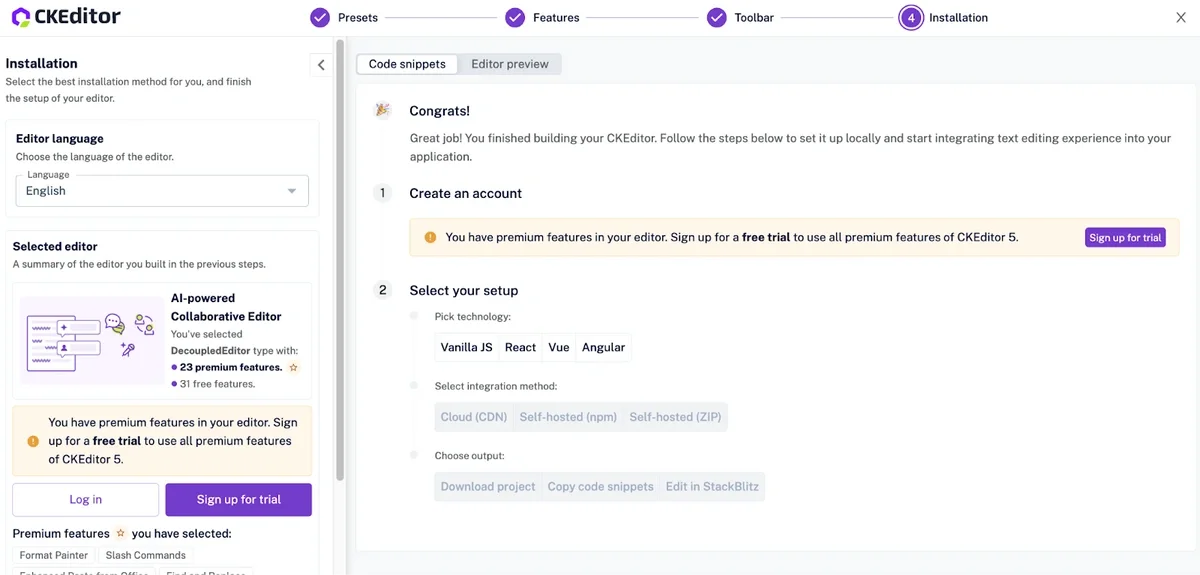
Using the output from this process, developers can test how CKEditor fits with their existing tech stack, while product managers can review the output against their business cases.
Note: While the Builder supports a few frameworks, CKEditor offers robust support for even more frameworks and libraries, including:
-
React
-
Next.js
-
Angular
-
Nuxt
-
Vue.js
-
Salesforce
-
Svelte
-
Spring Boot
-
SharePoint SPFx
-
Drupal
-
CSS frameworks, including Bootstrap, Foundation, Materialize, and Semantic UI
-
Laravel
-
.NET
-
Electron
-
jQuery
Get your CKEditor license key
Once you’ve started your trial, you can easily access your trial key from the customer portal. Just simply log into your customer portal, click the menu on the left and select Subscription under the Configuration heading, then select the license key toggle:
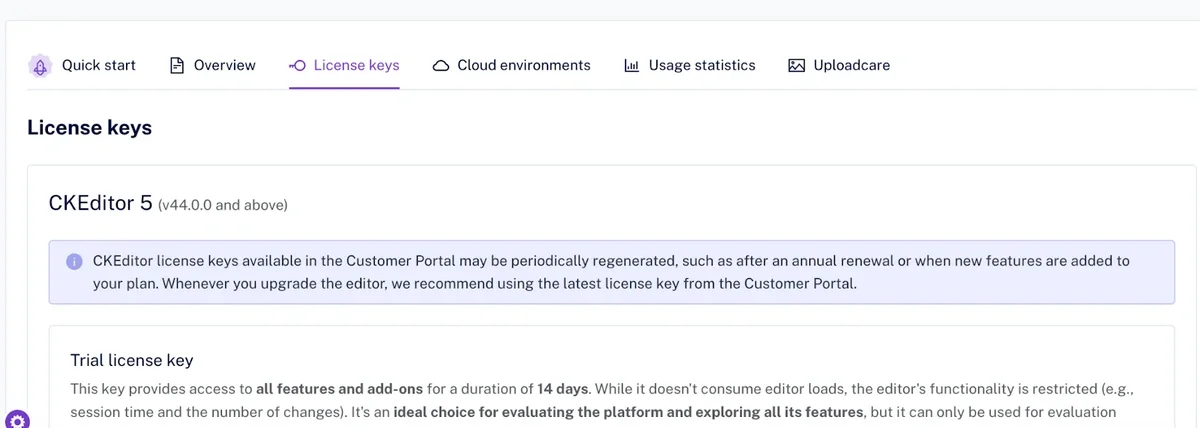
From there, just copy the key and paste it directly into your project.
When you log in, you will see:
-
The trial license key includes all premium features. Additionally, the trial license doesn’t limit the number of editor loads during the trial period.
-
The production license key lets you deploy the editor to real users. This version does not include all premium features, but rather only offers those features available in your subscription plan (set to “free” by default). This lets you ensure feature continuity after the trial ends. Please note that after the trial, this will consume editor loads against your plan’s allotment. Note: Editor loads refer to the total number of times the editor is initialized in your application. If you have five users opening the editor four times per month, that would count as 20 editor loads against your monthly allotment.
-
The development key allows you to build in a development environment. It is similar to the production key, but does not consume editor loads so teams can continue building and developing.
Please note that there are additional keys and credentials for cloud environments and any cloud-based services. You can learn more about these credentials by visiting the technical documentation.
Where do you insert your license key in your project?
CKEditor checks for the license key in the editor configuration object in the config files. You only need to set this once in your application.
Keeping the key private is paramount. To that end:
-
Store keys securely in locations such as environment variables or secret storage.
-
Avoid hard-coding keys in public-facing repositories or client-side code to prevent scraping.
You can learn more about integrations with the technical documentation:
Cloud vs self-hosted during the trial
During the 14-day trial, you can deploy via SaaS or on-premises. Neither option requires you to enter a credit card or commit to anything, and all features are available in both deployment options.
Can you self-host the trial?
Yes, you can self-host the trial during the 14-day period using either npm or ZIP. If you want to upgrade after the trial, you can do so by contacting the team.
On-premises and offline considerations
Many teams choose to self-host for data privacy, compliance, infrastructure control, or operation within restricted networks or air-gapped environments. Once installed, you can run CKEditor within your own environment without an Internet connection.
Additionally, CKEditor does offer the ability to deploy all premium features on-premises. These services enable capabilities like CKEditor AI with MCP support, CKBox, collaboration, and import/export tools to run on your own infrastructure.
Please note that, while the editor itself can be run offline, you will still need Internet access for setup and updates, including:
-
Downloading packages and the initial Zip or npm files.
-
Fetching plug-in dependencies, if using npm.
-
Accessing documentation when setting up the editor or making modifications.
What happens after the trial ends?
Once the trial ends, the CKEditor experience will change a bit. This section will explain what to expect and how to mitigate any risks.
Do premium plugins stop working?
Yes, after the trial period, you will only have access to the features that match your subscription. If you choose to stay on a free plan, all premium features will be disabled. These premium features include CKEditor AI, real-time collaboration, CKBox, export to PDF, import/export to Word, and several other capabilities. Please view the documentation to see a full list of premium features.
Will my created content break?
No. Content created during the trial will not be deleted or corrupted. Your content will remain stored and accessible after the trial, whether that’s via SaaS or self-hosting.
How do you cancel before being charged?
There’s no need to cancel. You do not need to enter payment information to start the trial, so you will not be charged unless you upgrade.
Your account will simply continue on the free plan with the premium features disabled.
How do I know what plan to choose?
When upgrading using our SaaS offering, you can choose between Essential, Professional, or a Custom plan. Each plan includes an allotment of editor loads per month and a specific list of the premium features. If a premium feature is not included in your plan, you can choose a custom plan. What’s worth mentioning is that with a Custom plan, you can go beyond 20,000 editor loads per month for cloud deployments or discuss alternative licensing metrics other than editor loads.
If you want to get the on-premises version, then you’ll need to contact the team to ensure the best plan and setup for your needs.
You can learn more by visiting the pricing page.
How do I know if I’m about to hit my limit once I’ve upgraded?
Each plan (besides Custom) is limited to a certain number of editor loads per month. Before you hit your limit, you will receive notifications in your developer console so you can either upgrade or change your configurations.
How do you evaluate CKEditor during the trial?
So this covers how the trial period works. But how should you actually approach testing the product during the 14 days?
Most teams start with a few practical questions in mind. You may have your own, but here are a few things to start with:
Question | What to look for |
Does CKEditor fit within your current tech stack? | Test to make sure that CKEditor runs well with your current frameworks, backend services, and your deployment model, particularly for on-premises. |
How do these features fit my use cases? | Make sure to focus on the features that best support your workflow and use cases. For instance, if you’re trying to find a Google Docs-like editor, then you’ll want to check out collaboration tools with real users if possible. |
How do real users respond to the editing experience? | Try to have real stakeholders in your organization test the user experience of the editor. This not only helps with upgrade choices, but it also helps you modify the editor to meet your teams’ needs (such as choosing a different interface or customizing to your needs). |
How does the editor perform under real-world usage? | Test the loading speed, typing responsiveness, and how well the editor handles large, complex documents. |
How clean are the inputs and outputs? | Check the editor’s HTML output or any other format you expect to use regularly. Additionally, test pasting from Word or other formats to see how they transfer to the editor. |
Once you’ve completed the basic setup, try to test the editor in a staging or development environment and invite a few users to try it. Focus on a testing plan with typical editing tasks and gather feedback on usability and performance. The CKEditor team recommends trying the CKEditor AI and collaboration experience with real users, as this shows you in concrete terms where the editor truly shines and how it increases productivity. This often helps with buy-in if you decide to go forward.
Also, you should try to estimate how many editor loads you will need per month, since pricing is based partly on this. This will help you determine which plan to use if you choose to upgrade, although you can always switch to a higher-tier plan later.
Finally, your team will likely want to review the technical documentation. They can do so prior to even starting a trial, but this will help you determine how useful the documentation will be once you get further into projects. Please note that technical support is available for upgraded plans as well.
Is CKEditor right for you?
Rich text editor components aren’t just software components; they’re core infrastructure for your applications. Whether your users are writing documentation, product descriptions, reports, or internal knowledge, the editing experience directly impacts productivity and content quality. A 14-day trial with CKEditor should give you enough time to determine its fit for your tech stack and workflows.
Because the trial includes all premium features and does not require payment info, you can freely experiment and focus on what matters most to your team. If you want to continue, you can always upgrade at any time.
If you’re ready to get started, please start a free trial today.