Deployment
Install CKEditor AI On-Premises on your own infrastructure. At the end you have a running container, an environment with an access key, and a token endpoint in your application that signs tokens for your users. To generate a docker run command for your setup, use the Setup wizard. To check your infrastructure first, see Requirements.
Prepare these services before you install CKEditor AI On-Premises:
- An SQL database (PostgreSQL or MySQL)
- An in-memory data store compatible with the Redis protocol (Valkey or Redis)
- File storage (Amazon S3, Azure Blob Storage, the local filesystem, or the SQL database)
You also need an Open Container runtime, for example Docker, Kubernetes, Amazon Elastic Container Service, or Azure Container Instances, and a valid license key from the Customer Portal.
For production, run a load balancer in front of the deployment. It lets you run several instances behind one address, and it is where you terminate TLS. NGINX, HAProxy, Amazon Elastic Load Balancing, and Azure Load Balancer all work. See SSL communication for the configuration.
See Architecture for the recommended infrastructure and how the parts connect.
The SQL database stores configurations, conversations, file metadata, and documents. It can also hold the uploaded files themselves when you set storage_driver to database.
The minimum required version of PostgreSQL is 12.0. We recommend PostgreSQL 18 or newer. The database user needs these privileges: SELECT, INSERT, UPDATE, DELETE, REFERENCES, CREATE, USAGE.
Create the database and the schema before you start CKEditor AI On-Premises. For example:
CREATE DATABASE "cksource";
\connect "cksource";
CREATE SCHEMA "ai-service-on-premises";The minimum required version of MySQL is 8.0. We recommend MySQL 9.7 LTS or newer. The database user needs these privileges: ALTER, CREATE, DELETE, DROP, INDEX, INSERT, SELECT, TRIGGER, UPDATE, LOCK TABLES, REFERENCES.
Create the database before you start CKEditor AI On-Premises. For example:
CREATE DATABASE `ai-service-on-premises`
  DEFAULT CHARACTER SET utf8mb4
DEFAULT COLLATE utf8mb4_bin;If binary logging is enabled without the SUPER privilege, make sure log_bin_trust_function_creators is enabled. Check this on managed database services (DBaaS) such as AWS RDS/Aurora, Azure Database, Google Cloud SQL, or DigitalOcean Managed Databases.
To use another SQL database, such as Microsoft SQL Server, contact us.
If you run Collaboration Server On-Premises, CKEditor AI On-Premises can share its SQL database, Redis instance, and environments. See Collaboration Server integration for the configuration and the token that covers both services.
Install CKEditor AI On-Premises from the Docker image.
To track your progress, use the Quickstart checklist. To generate a docker run command for your environment, use the Setup wizard.
To pull the CKEditor AI On-Premises Docker image, you need a download token.
-
Log in to the Customer Portal.
-
Open Subscription → License keys → CKEditor AI Server.
-
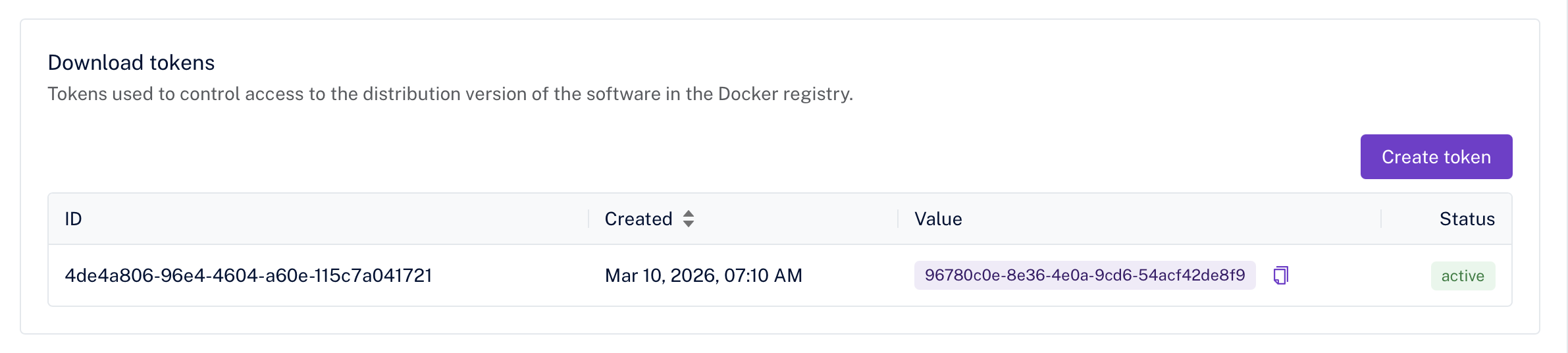
Scroll to the Download tokens section.
-
If no tokens exist, click Create token.
-
Copy and save the token.
If CKEditor AI Server is not visible in your Customer Portal, or you cannot create a download token, contact us.
Use the download token as the password to log into the CKEditor AI On-Premises Docker Registry, then pull the image:
echo "[DOWNLOAD_TOKEN]" | docker login -u ai-service --password-stdin https://docker.cke-cs.com
docker pull docker.cke-cs.com/ai-service:latestStart the container with the environment variables your deployment needs. Required configuration describes every option. The Setup wizard generates a command for your infrastructure, or you can adapt the example below. You can also see the Docker Compose and Kubernetes with Helm examples.
docker run --init -p 8000:8000 \
	-e LICENSE_KEY=[your license key from Customer Portal] \
	-e ENVIRONMENTS_MANAGEMENT_SECRET_KEY=[your management secret key used in management panel] \
	-e DATABASE_DRIVER=[mysql|postgres] \
	-e DATABASE_HOST=[your database host] \
	-e DATABASE_USER=[your database user] \
	-e DATABASE_PASSWORD=[your database user password] \
	-e DATABASE_DATABASE=[your database name] \
	-e REDIS_HOST=[your redis host] \
	-e PROVIDERS='{"openai":{"type":"openai","apiKeys":["your-api-key"]}}' \
	-e STORAGE_DRIVER=[s3|azure|filesystem|database] \
	-e STORAGE_ACCESS_KEY_ID=[your AWS access key] \
	-e STORAGE_SECRET_ACCESS_KEY=[your AWS secret key] \
	-e STORAGE_BUCKET=[your S3 bucket name] \
docker.cke-cs.com/ai-service:[version]-
Open the Management Panel in your browser. The panel runs at the address of the deployment, for example
http://localhost:8000/panel. -
Enter the
ENVIRONMENTS_MANAGEMENT_SECRET_KEYyou provided to the container. -
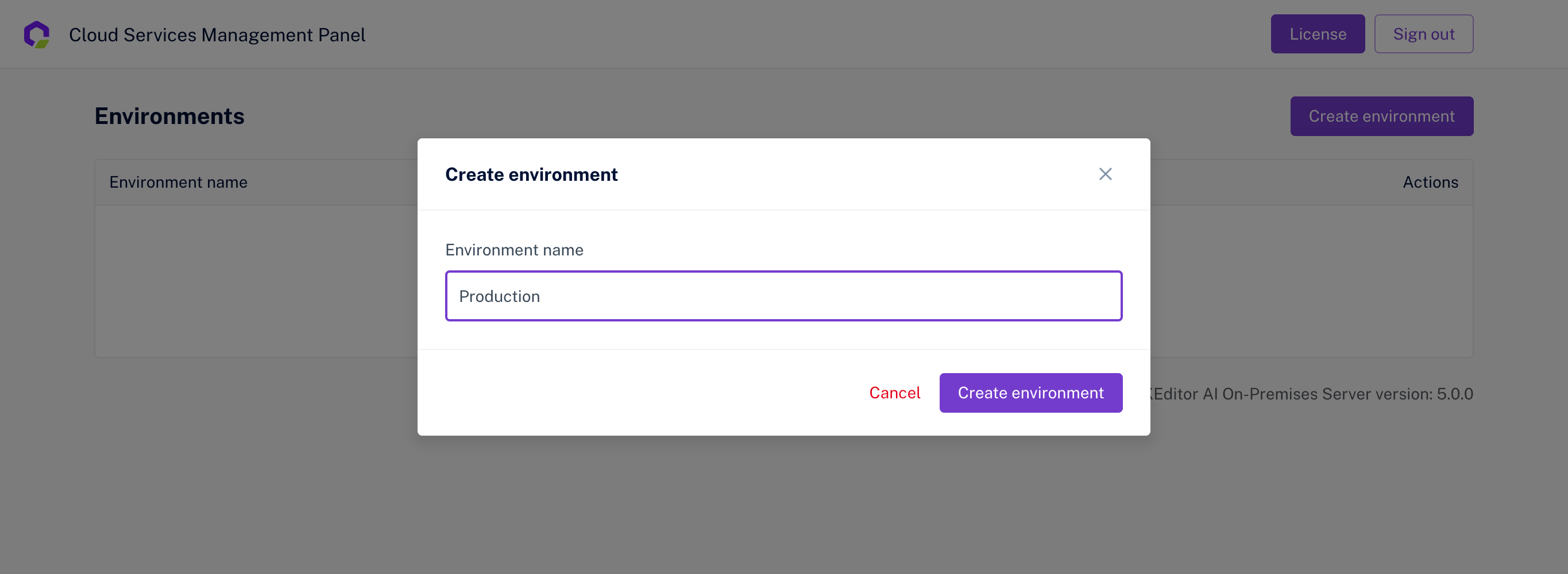
Create a new Environment.
-
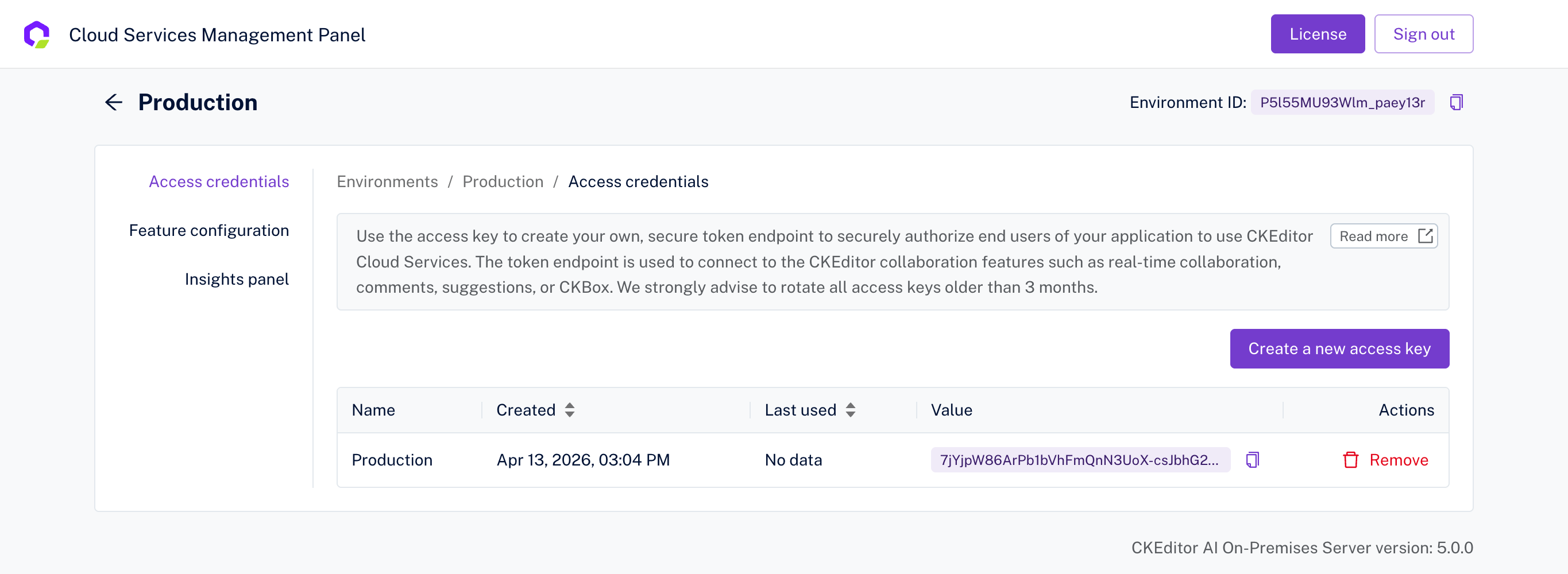
Inside the environment, create a new Access Key.
-
Save the
Environment IDand theAccess Key. You need them for the token endpoint.
See Access key for more on managing environments and access keys.
Use the Environment ID and Access Key from the previous step to create a token endpoint in your application. The endpoint signs the JWTs that authorize your users.
Include auth.ai.permissions in the token to grant access to AI features. For a working implementation, see the CKEditor AI section of the Node.js token endpoint example. The same endpoint is also available in PHP, Python, Java, and ASP.NET.
See Permissions for what each AI permission grants.
The quickest way to get an editor that works with your deployment is the CKEditor 5 Builder. It builds an editor with the CKEditor AI features enabled. Download the generated project, then configure the editor to point it at your deployment.
To connect to your CKEditor AI On-Premises deployment, set the following options in the editor configuration:
ai.serviceUrl– the address of your deployment, followed by/v1, for examplehttps://ai.example.com/v1.collaboration.channelId– a unique ID that identifies the data loaded in the editor instance or used by the context instance.cloudServices.tokenUrl– the token endpoint from Step 5. The editor uses it to get the JWT it sends with each request.
ClassicEditor
	.create( document.querySelector( '#editor' ), {
		licenseKey: '<YOUR_EDITOR_LICENSE_KEY>',
		cloudServices: {
			tokenUrl: '<YOUR_TOKEN_ENDPOINT>'
		},
		collaboration: {
			channelId: 'my-document-1'
		},
		ai: {
			serviceUrl: '<YOUR_DEPLOYMENT_ADDRESS>'
		}
		} )
		.then( /* ... */ )
.catch( /* ... */ );The models available in the editor are the ones you configured in LLM providers. For all editor-side options, see the AIConfig API reference and the CKEditor AI guides. The full description of the editor integration is in Integrating CKEditor AI with your application.
- Quickstart checklist – Run the smoke test against your deployment.
- Docker Compose and Kubernetes with Helm – Run the service from a ready-made example.
- Collaboration Server integration – Share one data layer and one token with Collaboration Server On-Premises.
- SSL communication – Terminate TLS in front of the deployment.
- Observability – Export traces to an OTLP backend, to Langfuse, or to both.
- Logs – Collect the container output and ship it to a distributed logging system.