Moderate content with your own rules
This scenario runs on on-premises deployments only, because it uses hooks. A hook calls a service that you host. See On-Premises.
This page shows one way to set this up. The extensions it uses fit this scenario, and other combinations work too. See Ways to use it and Choose an extension for the full list.
A law firm keeps ethical walls between client matters. Lawyers draft in CKEditor 5 and ask the chat for help as they write. The firm’s own rules decide which matters each lawyer may discuss. The chat must refuse a message about any other matter, and it must keep refusing while the service that checks the rules is down.
The firm already runs a screening service for its other tools. A hook sends each chat message to that screening service before the CKEditor AI agent runs. The screening service refuses the message, or it lets the agent handle the message. The user reads a refusal as the assistant’s reply.
A hook screens chat messages only. Actions, reviews, and Document Processing do not call your endpoint. To limit those for a user, use permissions.
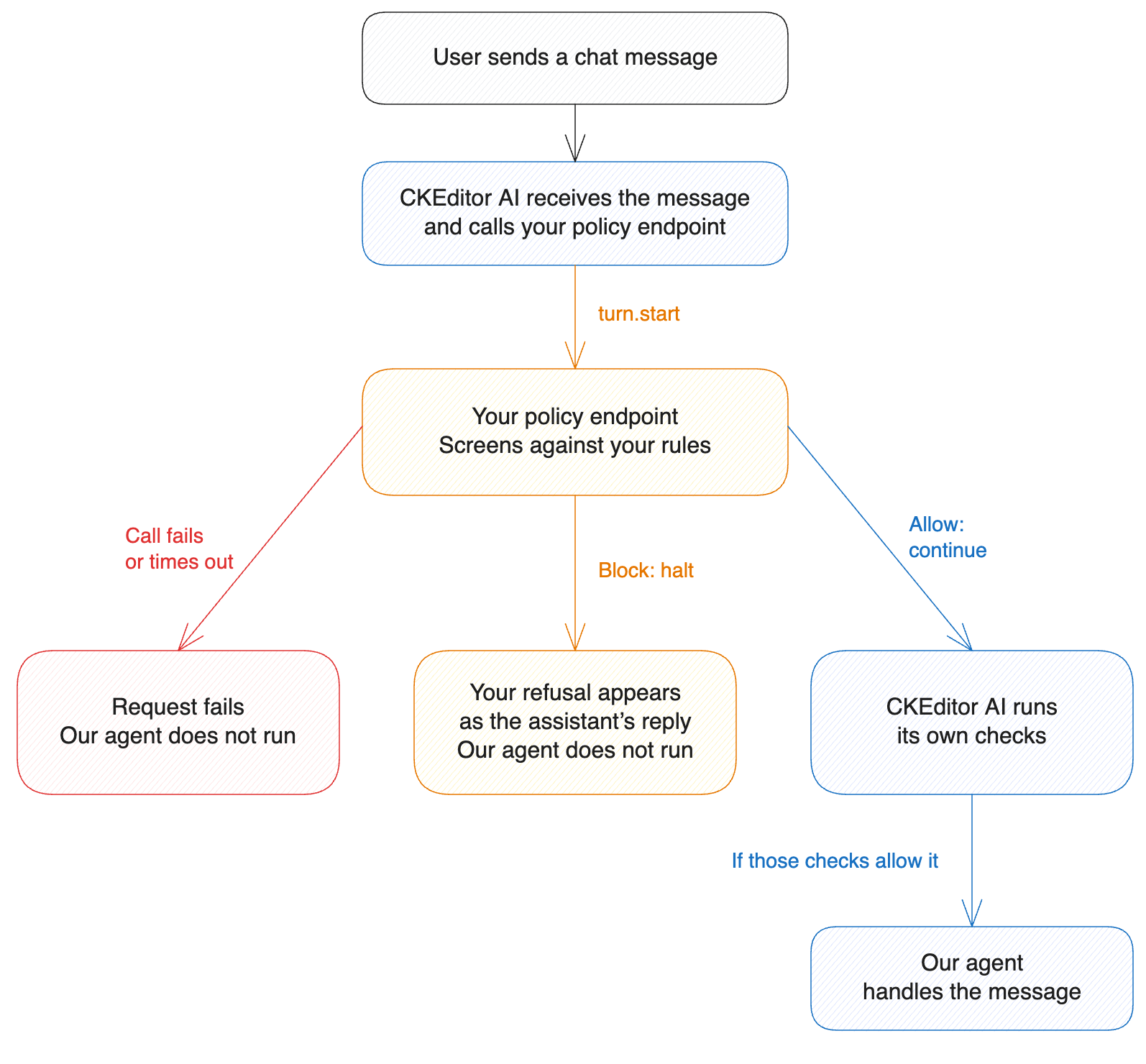
A hook does not replace built-in moderation. The two differ in what they check, and in what happens when the check cannot complete:
| Built-in moderation | A hook | |
|---|---|---|
| What it checks | Prompts and uploaded images, against a fixed set of harm categories | Chat messages and their attachments, against your own rules |
| If the check cannot complete | CKEditor AI accepts the content and writes a warning to the log. | The request fails with 502 hook-failed or 504 hook-timeout. The agent does not run. |
Use a hook when requests must fail while your screening service is down.
Your endpoint receives unscreened content. CKEditor AI calls your endpoint before its own content moderation and prompt-injection checks run, so the message and its attachments arrive as the user sent them. Screen them in your own service.
- Host one HTTPS endpoint for the whole deployment. The endpoint verifies the signature on every call, sends the message to your screening service, and answers within the timeout from step 2.
- Enable the
turn.starthook in the deployment configuration. Set its URL to your endpoint, and settimeoutMsabove the time your screening service needs to answer under load. The default is 30 seconds. - To refuse the message, return
haltwith the text the user reads. To let the agent handle the message, returncontinue.
- Your rules decide: your screening service refuses a message about a matter the lawyer may not discuss, and the user reads the refusal as the assistant’s reply.
- The refusal holds while your service is down: when your screening service cannot answer, the request fails and the agent does not run.
- Moderation hook endpoint in Node.js has the configuration and the endpoint code.
- Hooks covers what a hook can do, when to use one, and what a deployment needs.
- Moderation covers the built-in check and its provider options.